
วิธีตั้งค่า Windows Server ให้ Remote พร้อมกันได้ 2 Session (โดยไม่ต้องซื้อ License เพิ่ม)
การใช้งาน Remote Desktop บนเซิร์ฟเวอร์เป็นเรื่องสำคัญ โดยเฉพาะในกรณีที่ต้องการให้ผู้ดูแลระบบ 2 คนเข้าใช้งานพร้อมกัน บทความนี้จะอธิบายวิธีตั้งค่าให้สามารถ Remote พร้อมกันได้ 2 Session บน Windows Server 2016 โดยไม่ต้องติดตั้ง Remote Desktop Services (RDS) และไม่ต้องซื้อ License RDS CAL เพิ่ม Windows Server 2016 มีโหมดการใช้งาน Remote Desktop แบบ Administrative Mode ซึ่งอนุญาตให้
- Remote พร้อมกันได้สูงสุด 2 Session
- ใช้สำหรับการบริหารจัดการเซิร์ฟเวอร์
- ไม่ต้องซื้อ License เพิ่ม
- ไม่ต้องติดตั้ง RDS Role
หากติดตั้ง Remote Desktop Services (RDS) จะเข้าสู่โหมดที่ต้องใช้ License (RDS CAL) ซึ่งจะใช้งานได้มากกว่า 2 Session ขึ้นอยู่กับ License
ขั้นตอนการตั้งค่าให้ Remote พร้อมกัน 2 Session
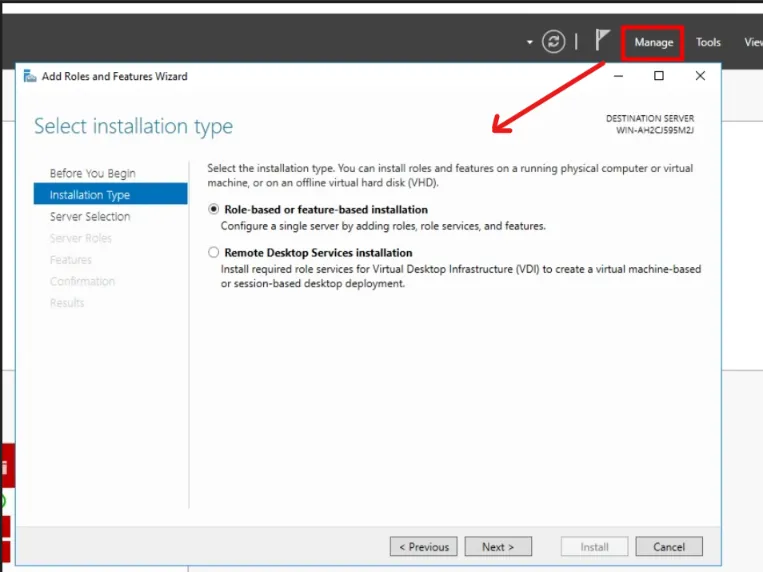
ขั้นตอนที่ 1: ตรวจสอบว่าไม่ได้ติดตั้ง Remote Desktop Services (RDS)
- เปิด Server Manager
- ไปที่ Manage
- เลือก Add Roles and Features
- ตรวจสอบว่าไม่มีการติดตั้ง Role ชื่อ Remote Desktop Services
หากไม่ได้ติดตั้ง ถือว่าถูกต้องแล้ว (ตามรูปด้านล่าง )
ขั้นตอนที่ 2: เปิดใช้งาน Remote Desktop
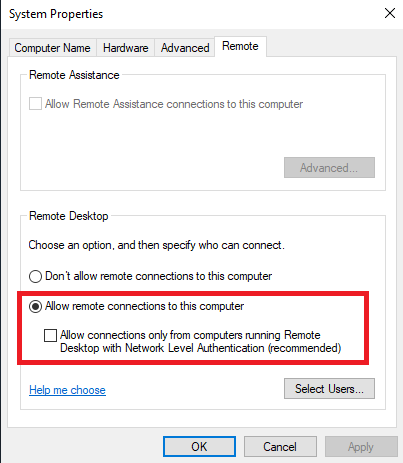
- กด Win + R
- พิมพ์ sysdm.cpl
- ไปที่แท็บ Remote
- เลือก Allow remote connections to this computer แล้ว กด OK(ตามรูปด้านล่าง
ขั้นตอนที่ 3: ปิดการจำกัด 1 User ต่อ 1 Session
โดยค่าเริ่มต้น Windows Server จะมีการตั้งค่าให้ User เดียวกัน Remote ใช้งานได้แค่ 1 Session ซึ่งจะทำให้คนที่เข้าใหม่ตัดการเชื่อมต่อของ Session ก่อนหน้านี้ออก
วิธีปรับให้ใช้งานพร้อมกันได้ 2 Session
1. กด Win + R
2. พิมพ์ gpedit.msc
3. ไปที่ Computer Configuration > Administrative Templates > Windows Components > Remote Desktop Services > Remote Desktop Session Host > Connections (ตามรูปด้านล่าง)
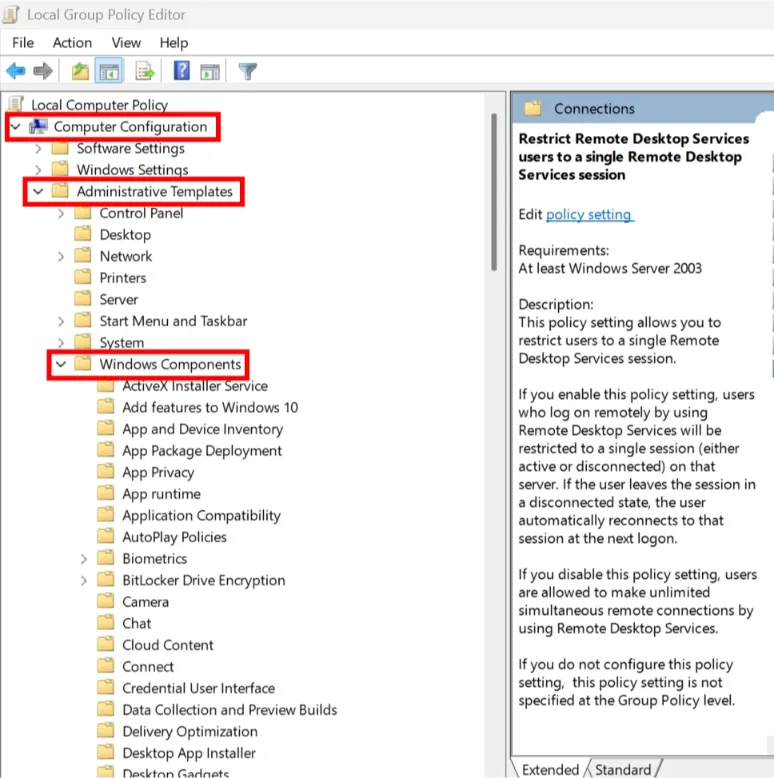
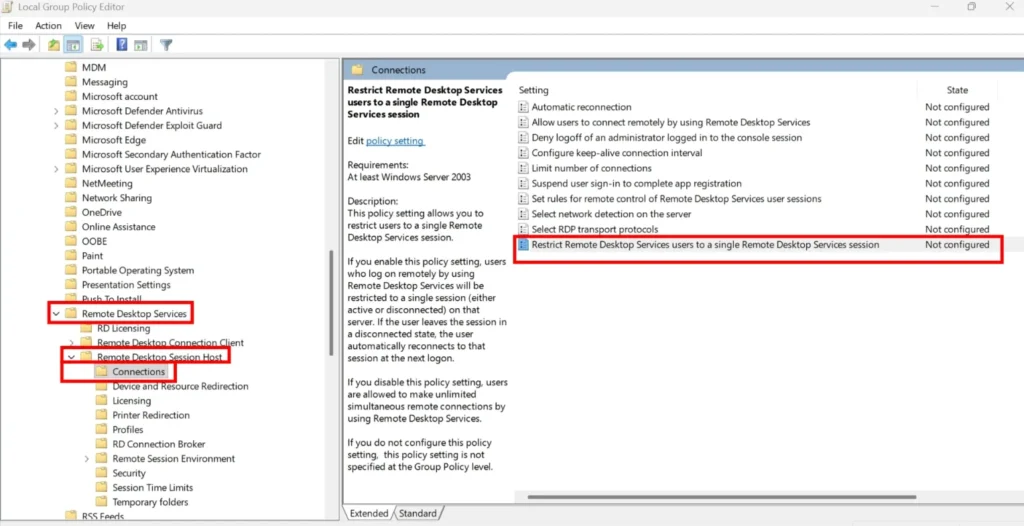
4. เปิดรายการ Restrict Remote Desktop Services users to a single Remote Desktop Services session
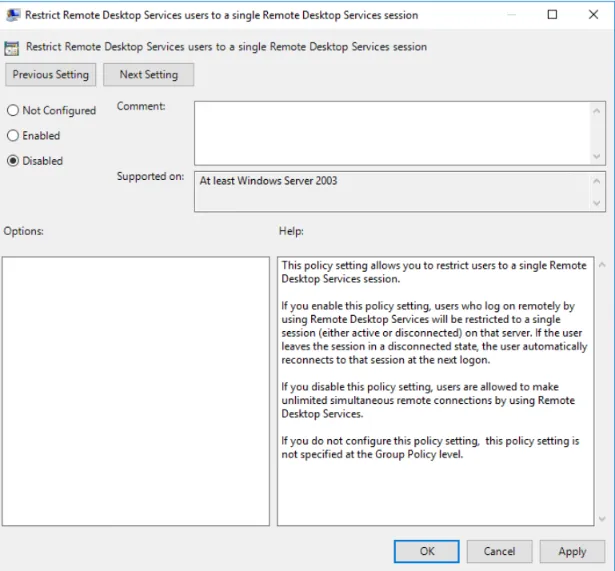
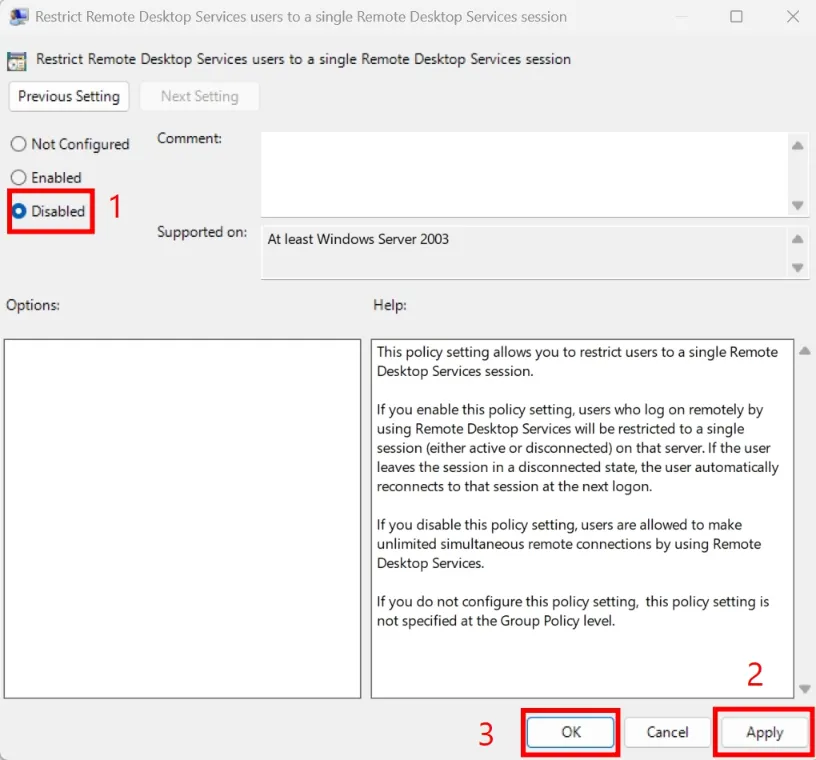
5. เลือก Disabled
5. กด Apply และ OK (ตามรูปด้านล่าง)
7. Restart Server และทดสอบ Remote ใช้งาน 2 Session พร้อมกัน